


This page is a base page that makes it easy to edit how to take an identity verification image later on the management screen. Please adjust the description as necessary.
How to do it on PC
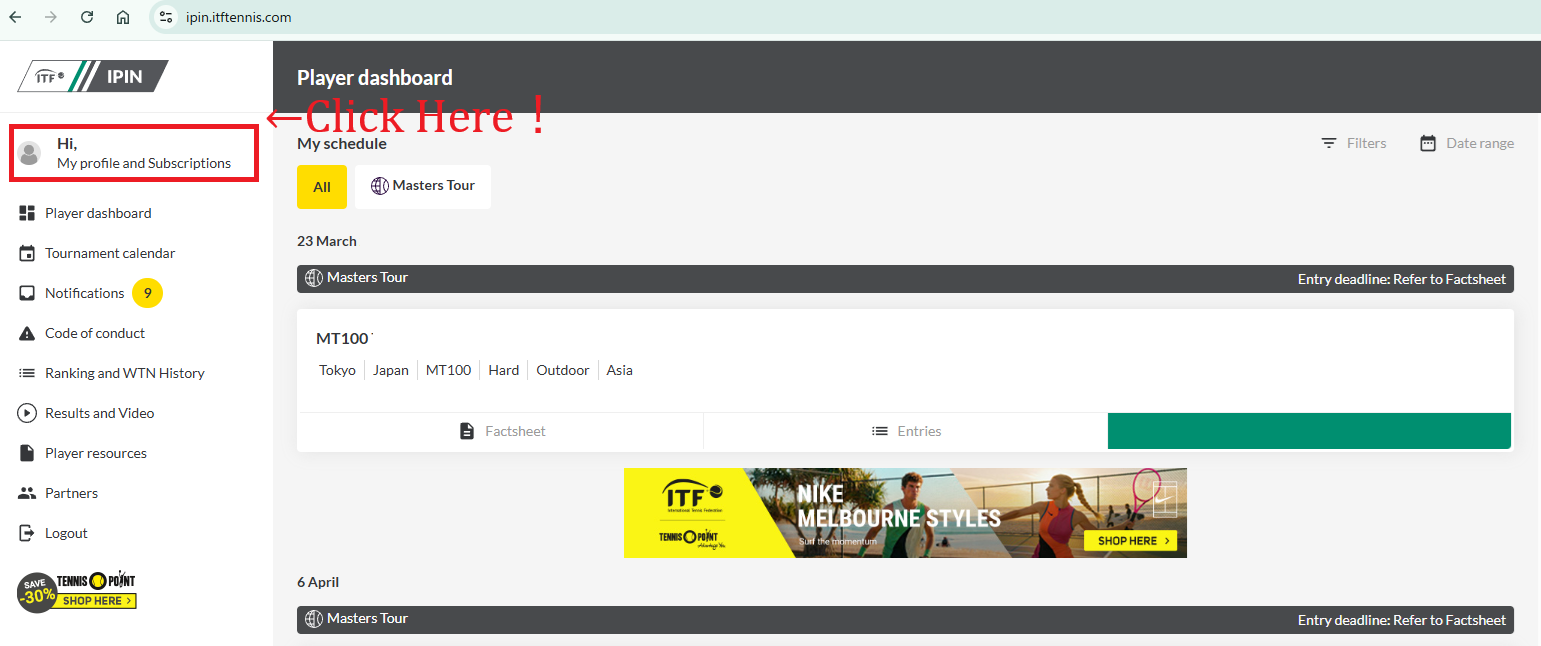
- Log in to IPIN.
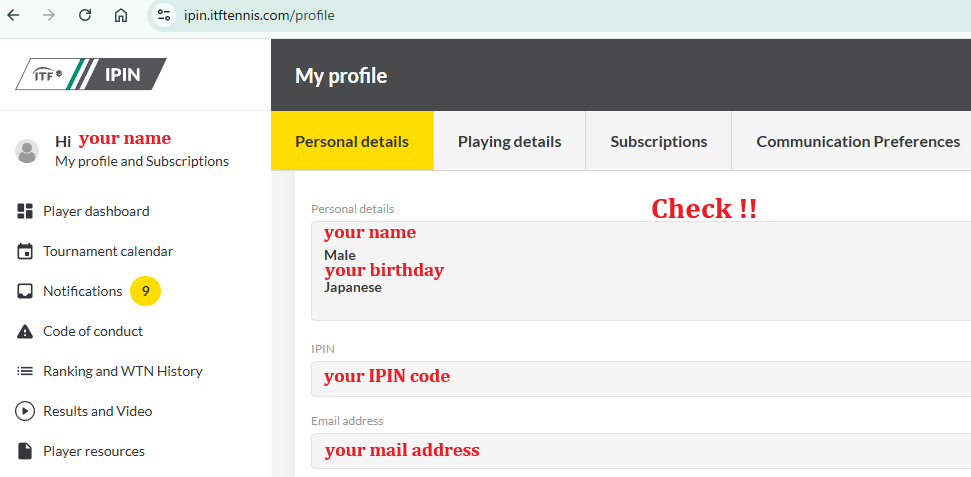
- Open “My profile” → “Personal details”.
- Make “Personal details”, “IPIN” and “Email address” visible at the same time.
- Be sure to hide or hide passwords and unnecessary personal information.
- Please take a screenshot of the entire screen and attach it to the form.
How to do it on your smartphone
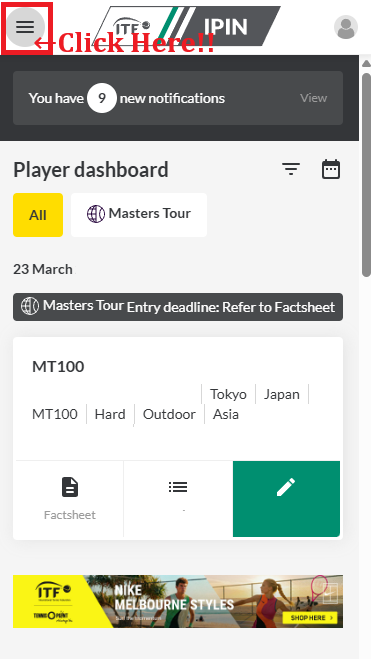
- Log in to IPIN on your smartphone browser.
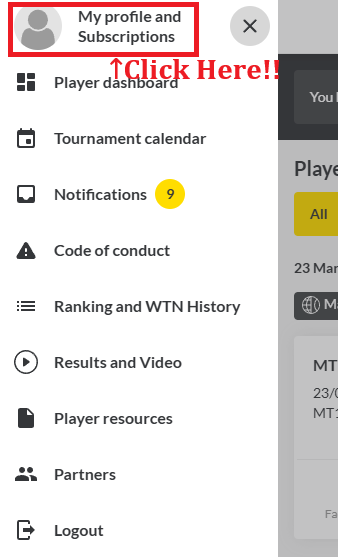
- Open “My profile” → “Personal details”.
- Scroll to the position where you can see “Personal details”, “IPIN”, and “Email address”.
- Be sure to hide or hide passwords and unnecessary personal information.
- Just take a screenshot and attach it to the form.
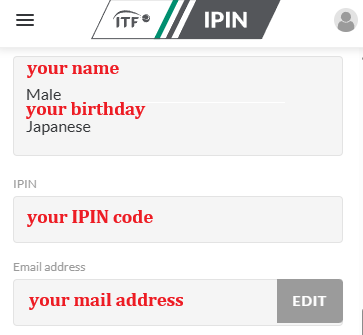
Points to note
- It will not be used for any purpose other than identity verification.
- Be sure to hide unnecessary information such as passwords, addresses, and phone numbers.
- Tournament officials may use screenshots of tournament software or ITF tournament officials’ screens. Be sure to hide confidential parts.